As-of: tested on macOS on 2026-09-28 with
@openhands/agent-canvas1.23.0 (agent-server 1.49.5), then re-verified the same automation end to end on 1.24.0 (agent-server 1.49.6, automation 1.15.1) the same day. Agent Canvas is a beta product and its UI changes fast — if a field has moved, check the official docs; the webhook mechanics below still apply.
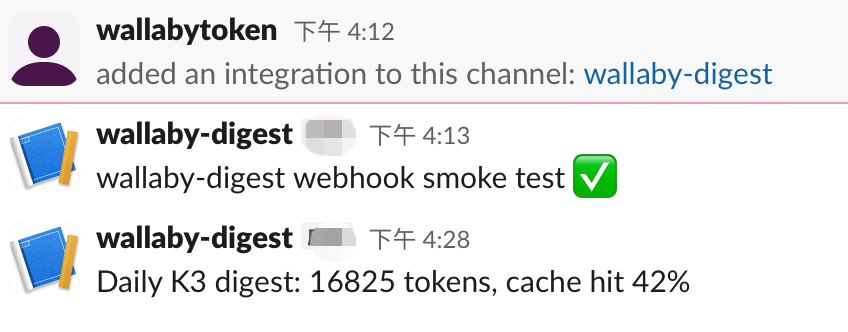
This is the third post in our Agent Canvas series: setup with Kimi K3, then moving the backend off your laptop. This one wires an automation to an integration — by the end, a scheduled agent posts a daily usage digest to a Slack channel, like this:
Daily K3 digest: 16825 tokens, cache hit 42%
The whole setup is one Slack incoming webhook plus one automation prompt. Our verification run below completed end to end and cost ≈ $0.075 in model calls. Disclosure: Wallaby Token sells API access to Kimi K3, the endpoint metered below is ours; every number comes from a real run on that paid endpoint.
One thing before the how-to: after three posts of building on Agent Canvas, we've stopped thinking of it as a beta. It is the fastest-moving agent UI we work with — the project shipped four releases in the four days we spent drafting this post — and the sections below show what that pace buys in practice.
Two ways to reach Slack from Agent Canvas
The OpenHands docs describe a full two-way integration: create a Slack app with nine bot-token scopes, invite the bot to your channel, connect a Slack MCP server in Customize → MCP Servers, then drive the prebuilt Slack channel monitor workflow. That path can read and react to channel traffic, and if you want an agent that lives inside Slack conversations, it is the right one.
If what you need is narrower — an automation that posts results to a channel — an incoming webhook is the lighter fit. It is a single URL that can only write to one channel: no OAuth scopes, no MCP server, nothing that can read your messages. For a scheduled digest, that least-privilege shape is a feature. That is the path this post walks through, verified end to end.
Step 1: Create the incoming webhook (about two minutes)
- Open api.slack.com/apps → Create New App → Blank app, pick your workspace.
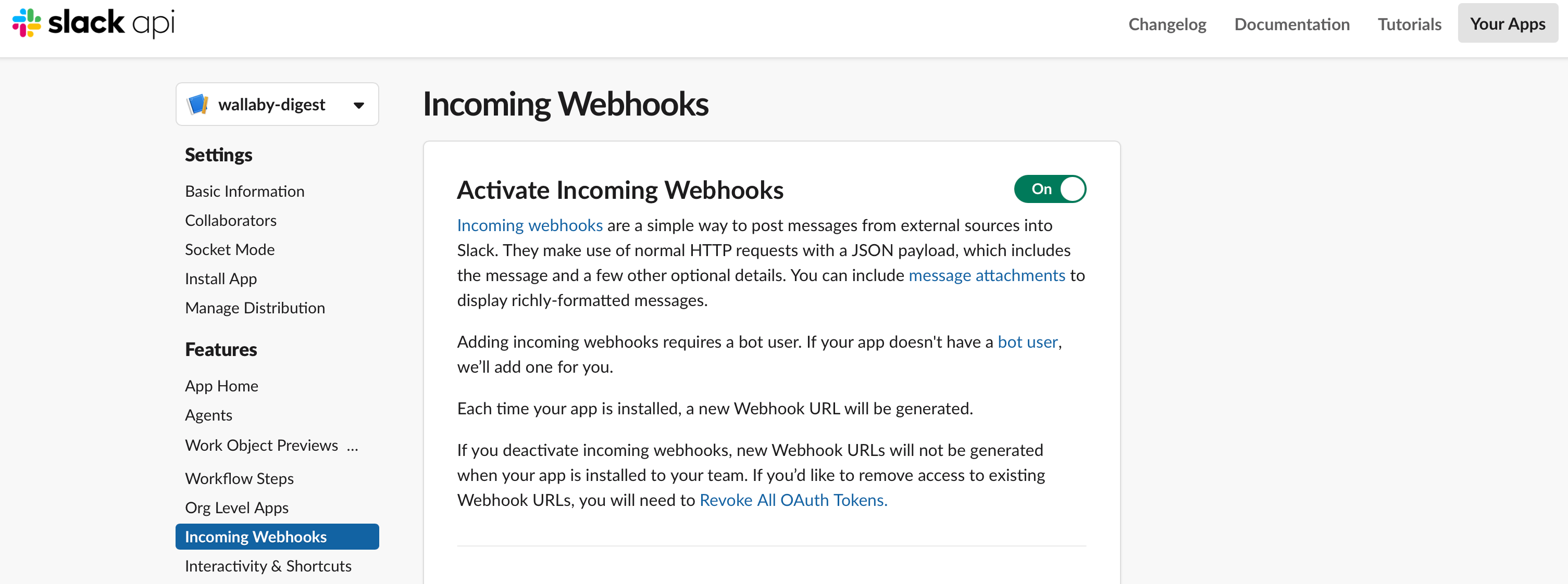
- In the app's left menu, open Incoming Webhooks and switch it on.
- Click Add New Webhook to Workspace — the channel box is a search box, so type the channel name to find it — then Allow.
- Copy the generated URL. It starts with
https://hooks.slack.com/services/...and it is a secret: anyone holding it can post to that channel. Keep it out of screenshots and public repos.
A free Slack workspace is enough, and you do not need to be a workspace admin unless your workspace requires app approval.
Step 2: The automation prompt
In the Automate tab, create a prompt automation on a cron schedule (we used 47 9 * * * UTC — a daily 5:47 PM trigger for our local evening), pointed at the same LLM profile as your chats. The prompt we ran, verbatim except for the masked webhook:
You are a scheduled usage-digest job. Everything you need is in this prompt; the workspace starts empty.

1. Create usage.jsonl with 6 rows, one JSON object per line, fields: ts (ISO 8601 time today), model "kimi-k3", prompt_tokens, completion_tokens, cached_tokens. Use plausible varied numbers.
2. Compute total_tokens = sum of prompt_tokens+completion_tokens, and cache_hit_rate = 100*sum(cached_tokens)/sum(prompt_tokens) rounded to an integer percent.
3. Create digest.log with the header line "date | total_tokens | cache_hit_rate_percent" and append one line for today in that format.
4. Post a one-line summary with the real numbers to Slack by running exactly this command (fill in the numbers):
curl -s -X POST -H 'Content-type: application/json' --data '{"text":"Daily K3 digest: <total_tokens> tokens, cache hit <rate>%"}' 'https://hooks.slack.com/services/TXXX/BXXX/xxxx'
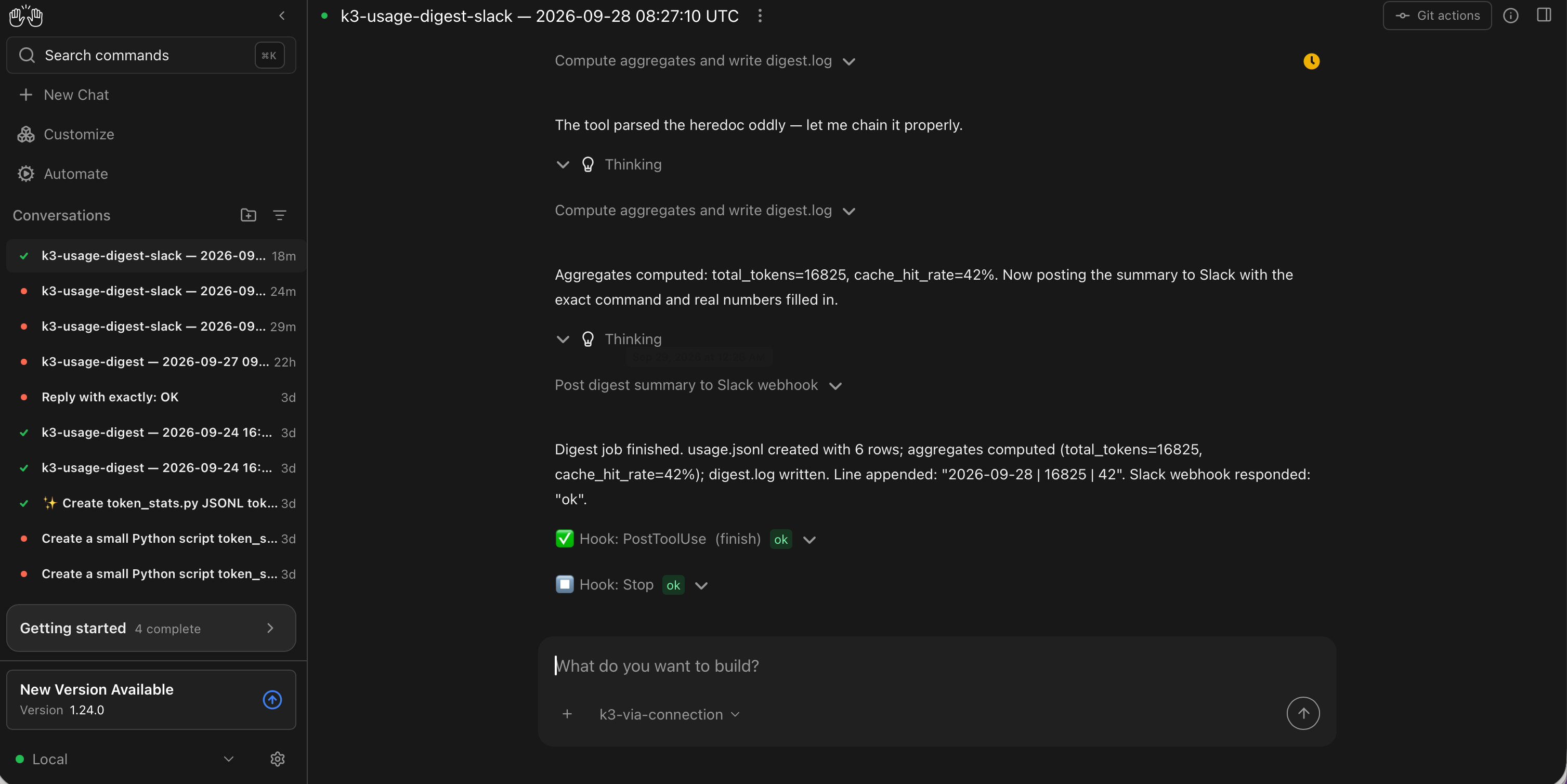
5. Final reply: the exact line you appended to digest.log, and the response body Slack returned.
Two details in this prompt do real work:
- "Everything you need is in this prompt; the workspace starts empty." Each automation run starts in a fresh, empty workspace — files from your chats are not there (we covered this in the setup post). So the job fabricates its own input data before summarizing it. For a real digest you would instead pull numbers from your own source — the structure stays the same.
- Step 4 hands the agent one exact command. Giving the agent a literal curl line, with only the numbers to fill in, keeps the Slack step deterministic instead of improvised.
(If you script your setup, the same automation can be created through the API — POST /api/automation/v1/preset/prompt with name, prompt, model, and a cron trigger. The UI and the API produce the same object.)
Step 3: Run it and verify all three ends
You can wait for the schedule, or dispatch a run immediately from the automation's menu. Our run took about three minutes — most of it environment setup — and we checked three places:
- The workspace:
digest.logcontains exactly what the prompt specified —
date | total_tokens | cache_hit_rate_percent
2026-09-28 | 16825 | 42
- Slack: the channel received
Daily K3 digest: 16825 tokens, cache hit 42%, with numbers matching the log line.
- The bill: three model calls (
openai/kimi-k3) landed on our gateway, ≈ $0.075 total. As noted earlier in this series, Canvas showscost: 0.0for custom models — LiteLLM has no price entry for them — so your provider's dashboard remains the authoritative bill. [Run of 2026-09-28; dollar figure from Wallaby's published price list]
Why this pattern is worth your attention
Stepping back from the digest itself, the combination on display here — scheduled agents plus a write-only webhook — is the interesting part, and it generalizes well beyond Slack:
- The destination is anything that accepts a POST. Slack today; the same prompt shape can report to Discord, Teams, a Grafana annotation, or your own endpoint tomorrow. The agent doesn't care which URL it curls.
- The report is written by the agent, not a template. Because a model composes the message from data it gathered that run, the digest can summarize, compare against yesterday, or flag anomalies — a static notification template can't. Today we ask for totals; nothing stops you from asking "only message the channel if the cache rate dropped."
- The team ships — fast. Four releases landed in the four days we spent drafting this post (1.21 through 1.24, per npm's publish timestamps), and the cadence shows up in substance, not just version numbers: 1.24.0 already warns when a saved LLM profile references an unavailable model (#17675), one of the failure modes we ran into ourselves below. The direction has official wind behind it too — automations and integrations are two of Agent Canvas's headline features, the prebuilt workflow library is growing, and a unified Integration Hub is on the OpenHands roadmap (#14524). Teams wiring their first webhook automation now are learning the exact muscle those releases will build on.
In our three posts with Agent Canvas — setup, remote backend, and now integrations — the product has gone from "promising beta" to something we run real scheduled work on. Every rough edge we hit along the way (below) was environment-side and quick to fix. What stands out is the trajectory: a young product moving this fast, with a team visibly triaging community reports, tends to compound. If you run agents on a schedule — or plan to — this is where we'd start.
Two setup notes, with fixes
Scheduled runs need a reliable path to PyPI. Every run sets up a fresh virtualenv, so a host with flaky outbound access to pypi.org can fail before the agent starts — we saw this on three consecutive scheduled runs while manual dispatches succeeded. Fix: point the host at a reachable mirror or proxy. One line of environment hygiene, and the runs have been dependable since.
Keep one profile per instance. If you experiment with multiple agent-servers sharing one ~/.openhands directory (an unusual setup of our own making), a stored API key can be lost, and calls fail with "Missing credentials". Fix: re-enter the key in Settings → LLM — thirty seconds. We reported the underlying edge case upstream as software-agent-sdk #5317, and the triage conversation is underway. Encouragingly, the adjacent rough edges are already being smoothed: 1.24.0's SDK surfaces a friendlier error when an API key is invalid and retries once on a 401 — the failure class above is visibly on the team's radar.
Rolling out to a team
Each developer runs their own local Agent Canvas, and the account side carries the team mechanics: one prepaid balance as a hard ceiling on the whole team's spend, one named key per developer with its own dollar cap and optional expiry, and usage logs itemized per key — so when a digest like this one reports numbers, per-person attribution is already done. There are no seat fees: adding a teammate costs exactly their token usage. The full walkthrough is in One endpoint, one bill.
Your code, your business
Three commitments, verbatim from our privacy policy: No content logs. No training on your data. No usage reports built from your traffic. Usage lines record token counts, costs, and timing — never prompts, never completions.
Reliability you can verify
We operate a public status page so you can verify availability independently before troubleshooting your own setup. Our terms are written in plain language and publicly accessible. Wallaby Token is a registered Australian company with an ABN on file, and we run our own development workloads through the same gateway we sell — the calls behind this guide ran on it.
Get started
Create an account at wallabytoken.com (new accounts receive $0.50 in free credit; current rates are always on the pricing page), mint a key, and point Agent Canvas at it — the setup post covers the three fields. Then give your agent somewhere to report to.